
Back up and recover services
Protect your data with automatic backups and cross-region protection
Tiger Cloud provides comprehensive backup and recovery solutions to protect your data, including automatic daily backups, configurable retention, cross-region protection, and point-in-time recovery.
Automatic backups
Tiger Cloud automatically handles backup for your Tiger Cloud services using the pgBackRest tool. You don't need to perform
backups manually. What's more, with cross-region backup, you are protected when an entire region goes down.
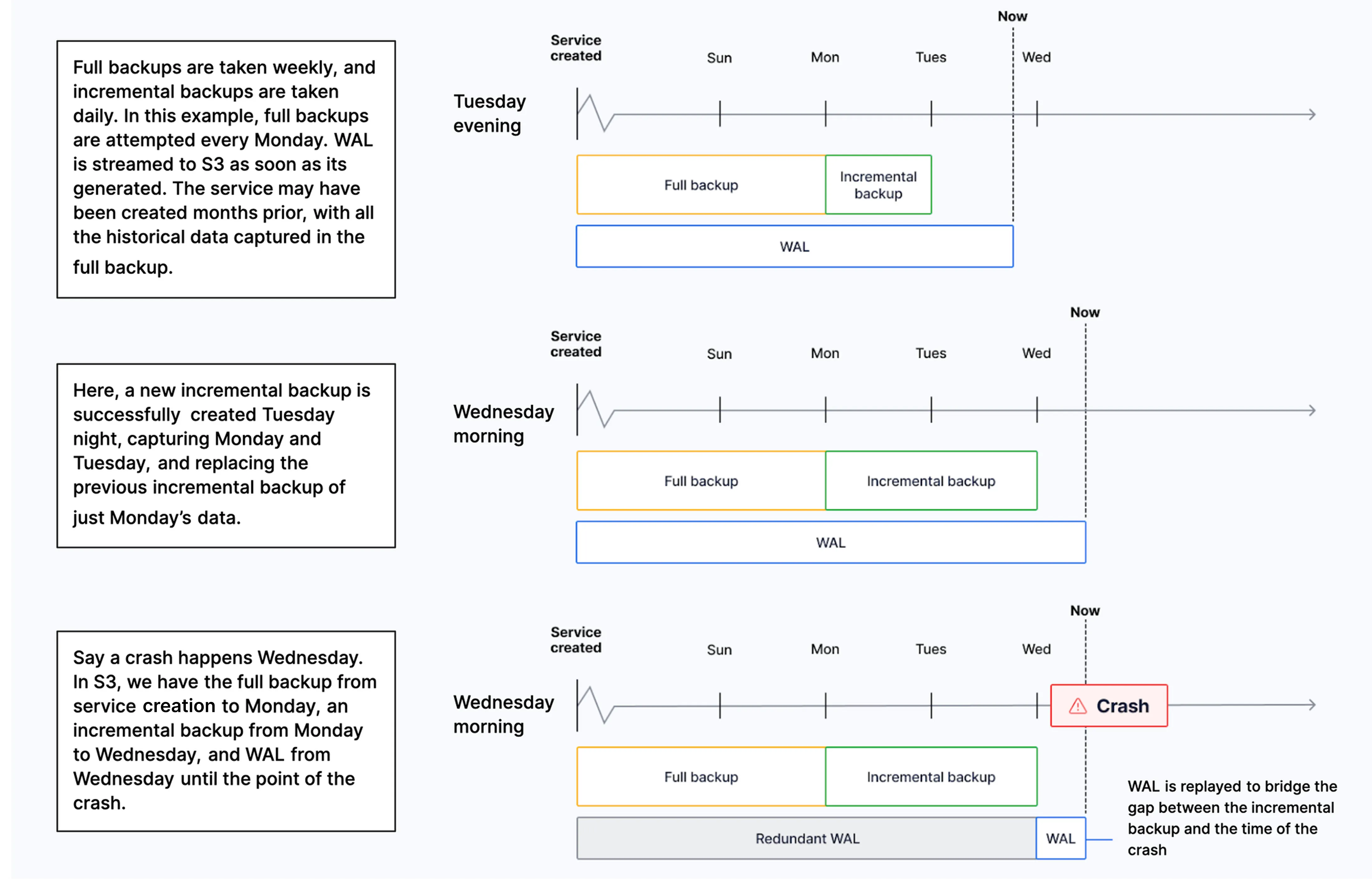
Tiger Cloud automatically creates one full backup every week, and incremental backups every day in the same region as your service. Additionally, all Write-Ahead Log (WAL) files are retained back to the oldest full backup. This means that you always have a full backup available for the current and previous week:
On Scale and Enterprise pricing plans, you can check the list of backups for your retention period in Tiger Console. To do so, select your service, then click Operations > Backup and restore > Backup history. On Enterprise, you can extend backup retention up to 180 days.
In the event of a storage failure, a service automatically recovers from a backup to the point of failure. If the whole availability zone goes down, your Tiger Cloud services are recovered in a different zone. In the event of a user error, you can create a point-in-time recovery fork.
Extend backup retention
Extended backup retention is available on the Enterprise pricing plan.
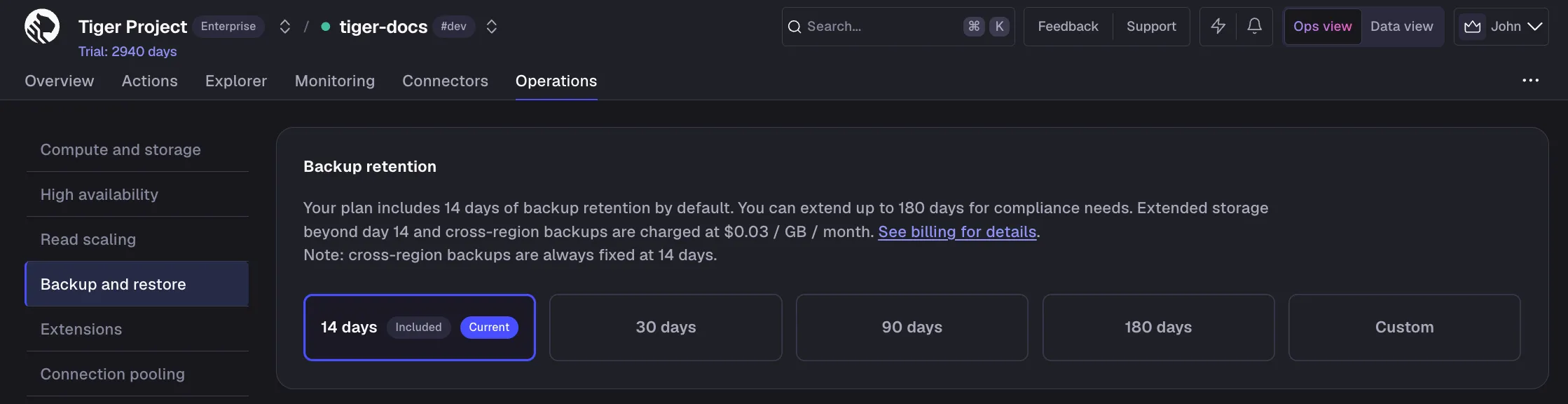
Tiger Cloud keeps full backups, incremental backups, and WAL files for the retention period included with your pricing plan. This means that you can recover your data to any point in that period. To meet longer compliance or audit requirements, on Enterprise you can set a retention period of up to 180 days for each service.
Extended retention covers backups and WAL files in the same way as the default retention period. The recovery window for point-in-time recovery forks matches your retention period: if you set retention to 90 days, you can fork your service to any point in the previous 90 days. When you extend the retention period, backups accumulate until they cover it in full; when you shorten it, the backups outside the new period are deleted soon afterwards and are no longer available for recovery.
To change the retention period:
- Select your service and open backup settings
In Console, select your service and click
Operations>Backup and restore. - Set the retention period
In
Backup retention, select one of the preset periods, or clickCustomand set a number of days between 14 and 180, then confirm your choice.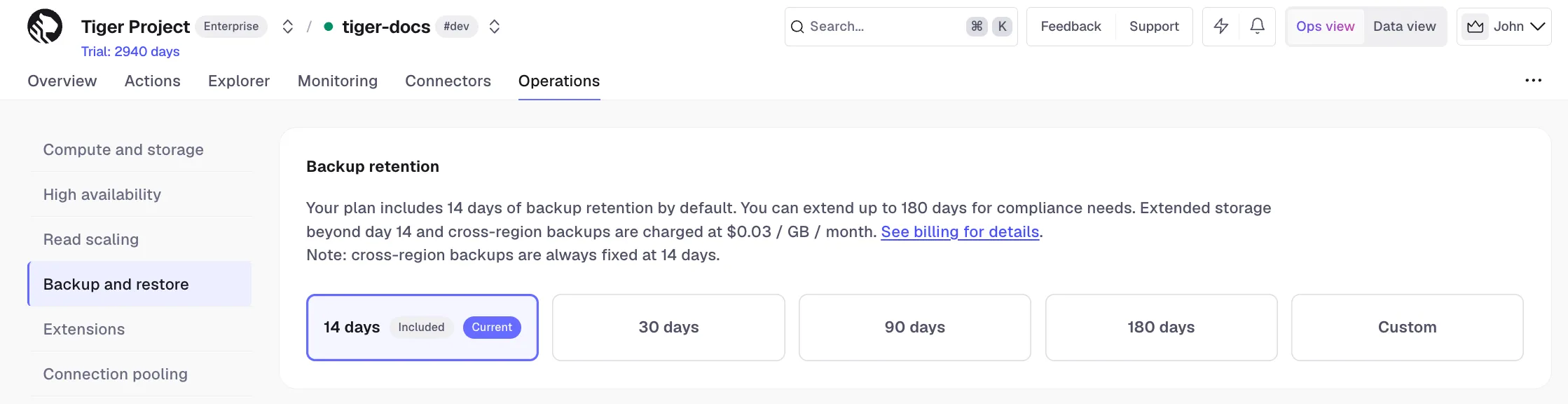
Enable cross-region backup
Cross-region backup is available on Enterprise pricing plan.
For added reliability, you can enable cross-region backup. This protects your data when an entire region goes down. In this case, you have two identical backups of your service at any time, but one of them is in a different region. Cross-region backups are updated daily and weekly in the same way as a regular backup. You can have one cross-region backup for a service.
Cross-region backups are always kept for 14 days. Extended backup retention applies only to the backups in the region your service runs in.
You enable cross-region backup when you create a service, or configure it for an existing service in Tiger Console:
- Select your service and open backup settings
In Console, select your service and click
Operations>Backup and restore. - Enable cross-region backup
In
Backup regions, select the region in the dropdown and clickEnable backup.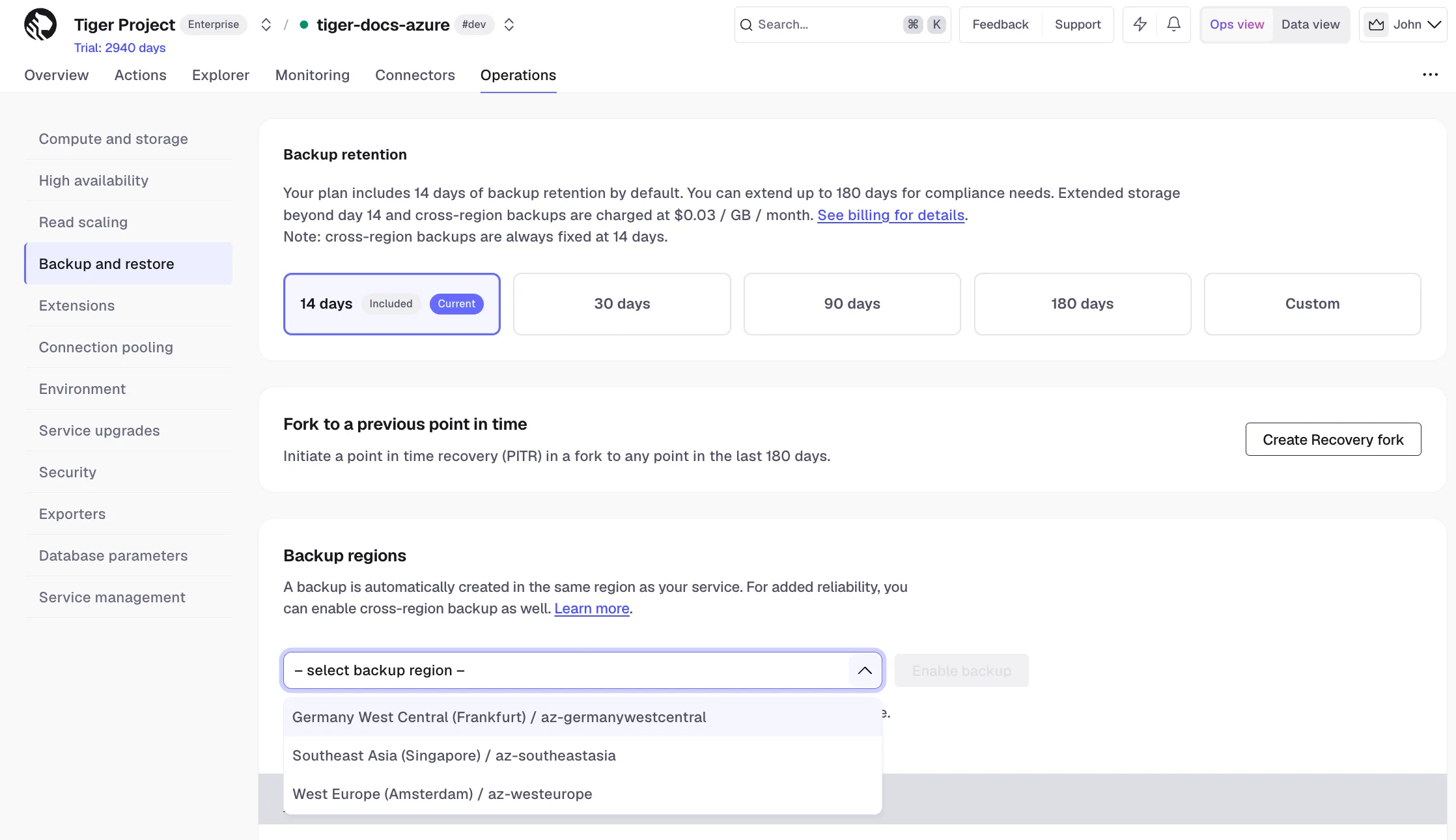
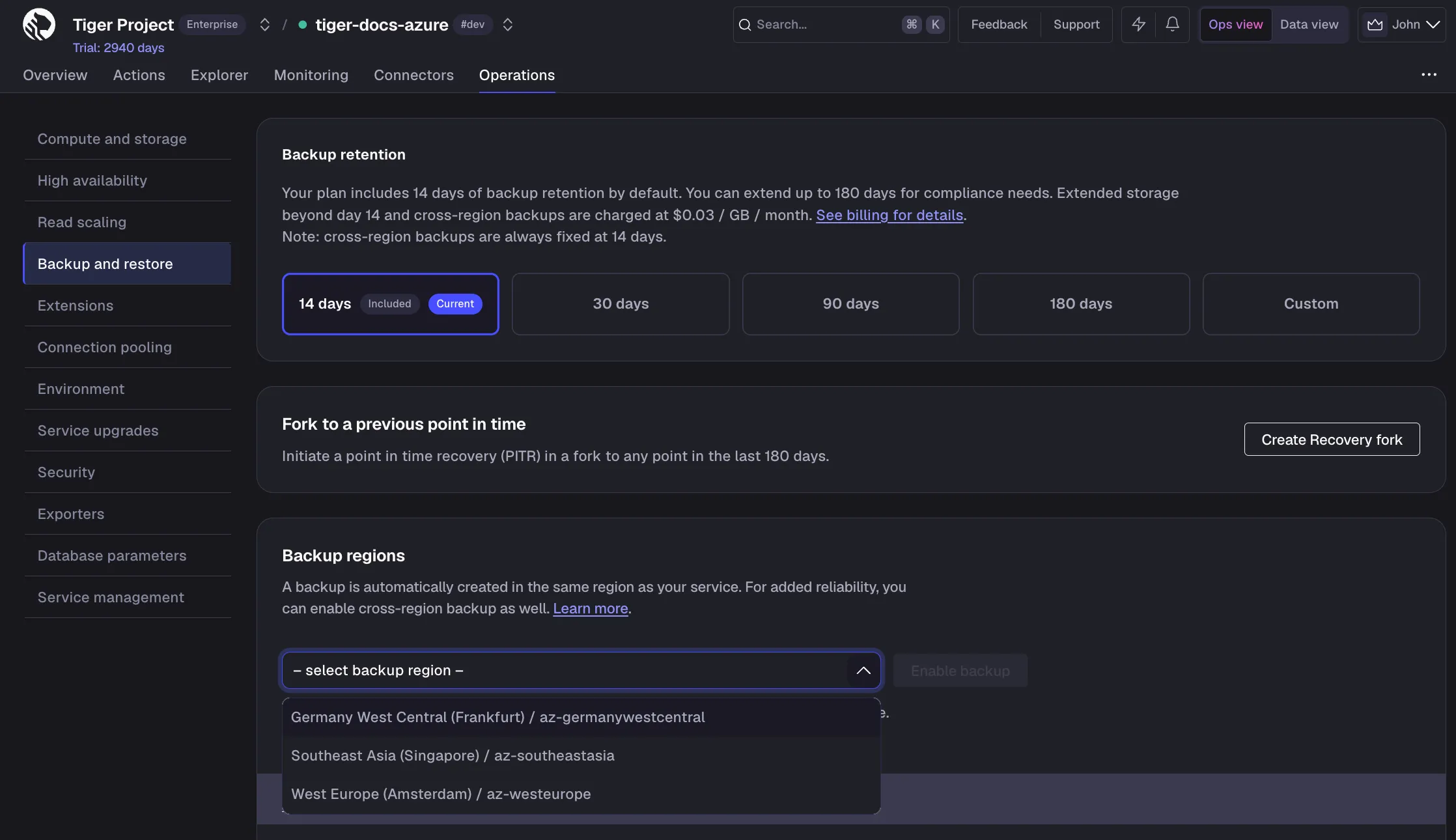
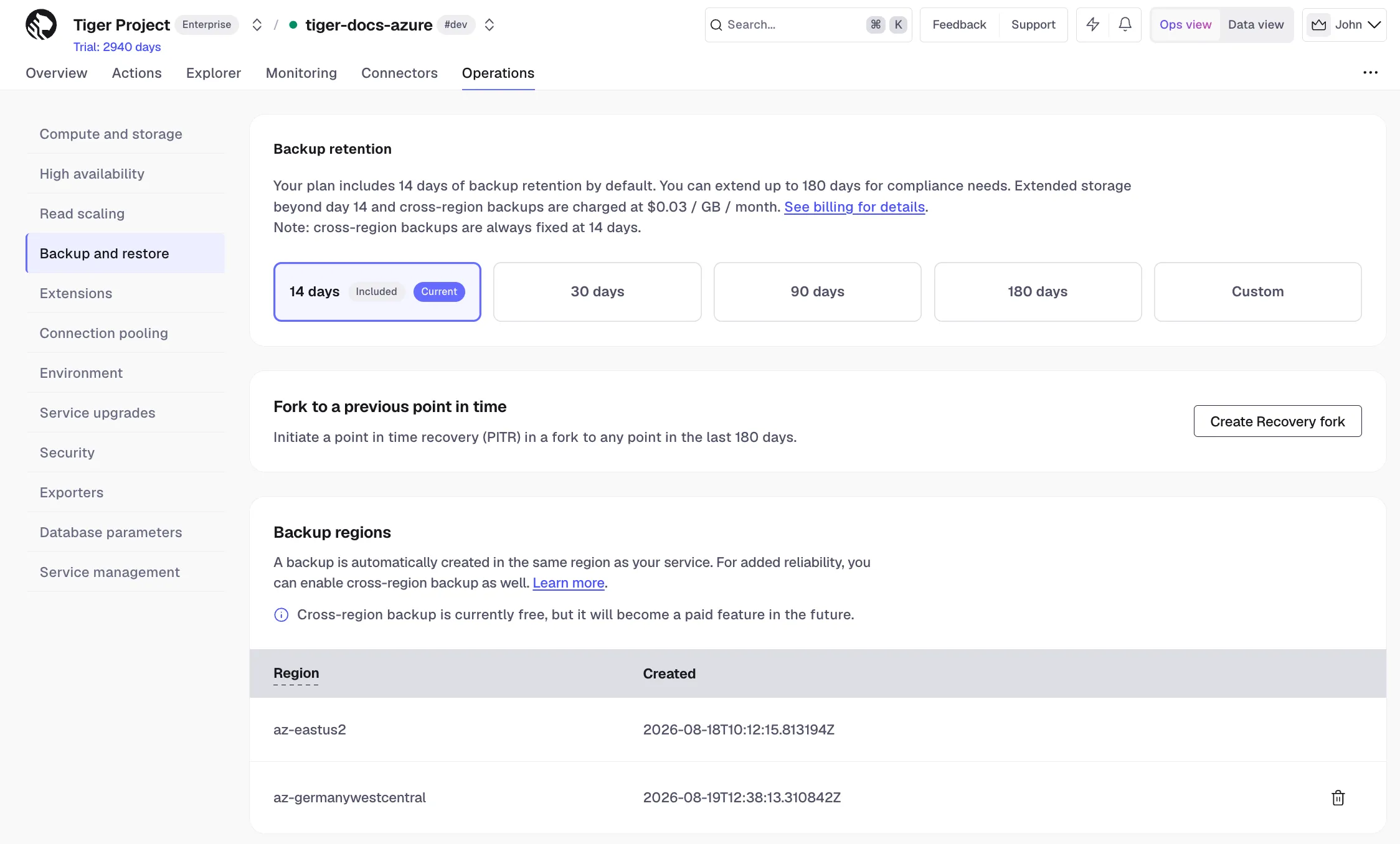
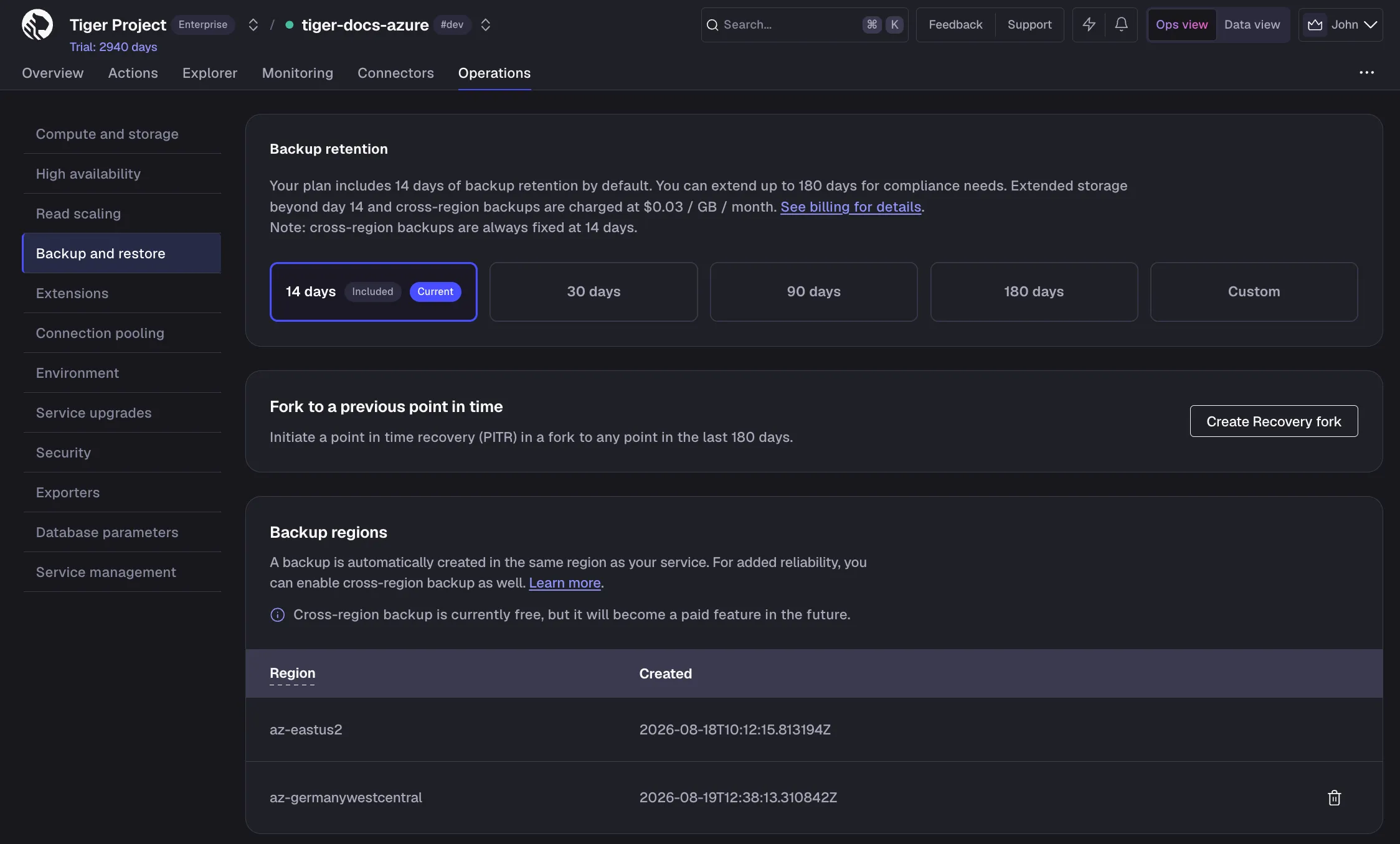
You can now see the backup, its region, and creation date in a list.
You can have one cross-region backup per service. To change the region of your backup:
- Open backup settings for your service
In Console, select your service and click
Operations>Backup and restore. - Disable the existing backup
Click the trash icon next to the existing backup to disable it.
- Create a new backup in a different region
In
Backup regions, select the new region in the dropdown and clickEnable backup.
Recover to a point in time
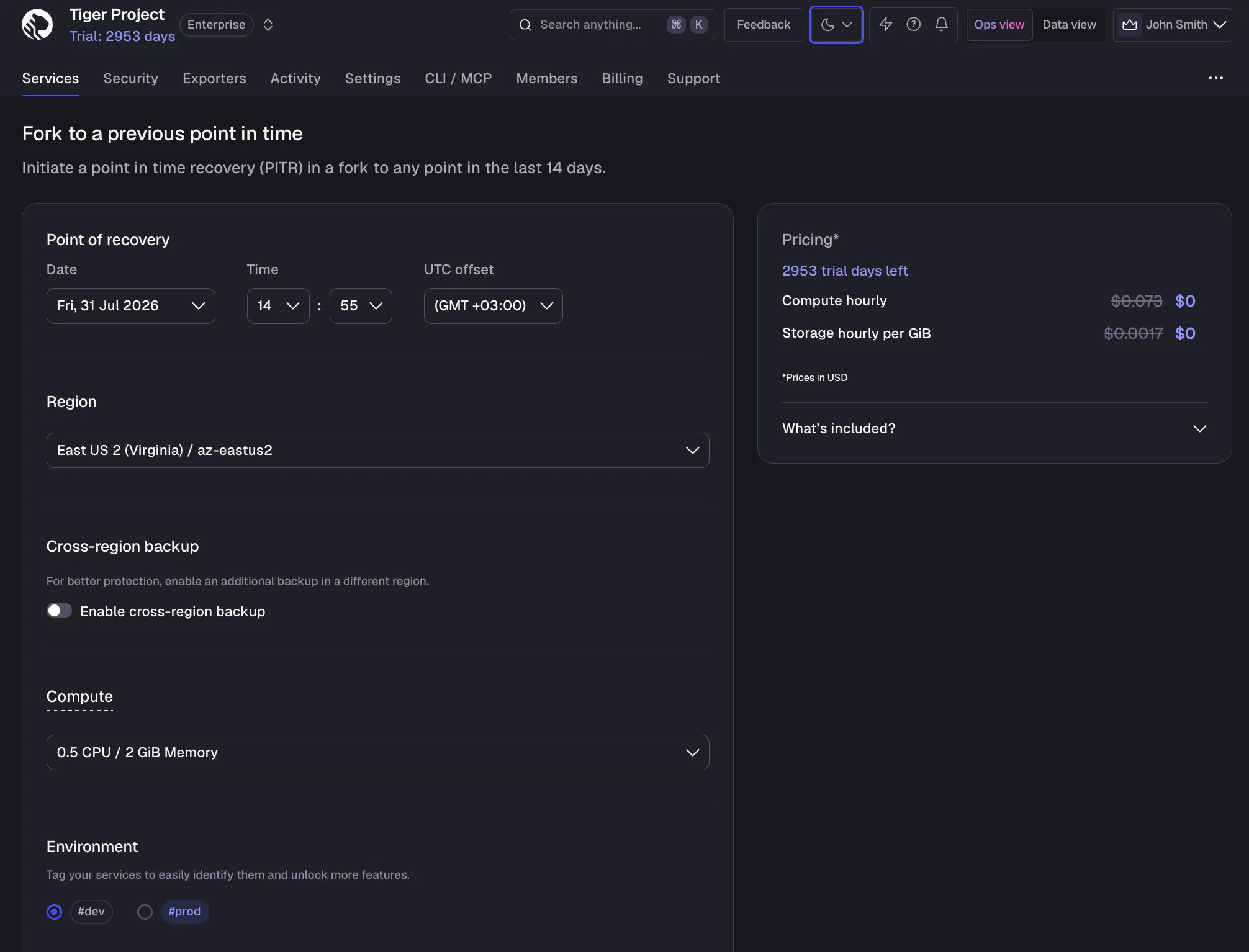
When data is lost or damaged, by an accidental delete or a bad migration for example, you recover it with a point-in-time recovery (PITR) fork: a copy of your service as it was at a moment before the problem started. You then point your app at the fork. The original service stays untouched.
PITR forks use the timestamp forking strategy. To recover from a destructive or unwanted action, create a fork at a specific point in time. To avoid paying compute for both the recovery fork and the original service, pause the original.
- Navigate to
Operations>Service managementand clickCreate recovery fork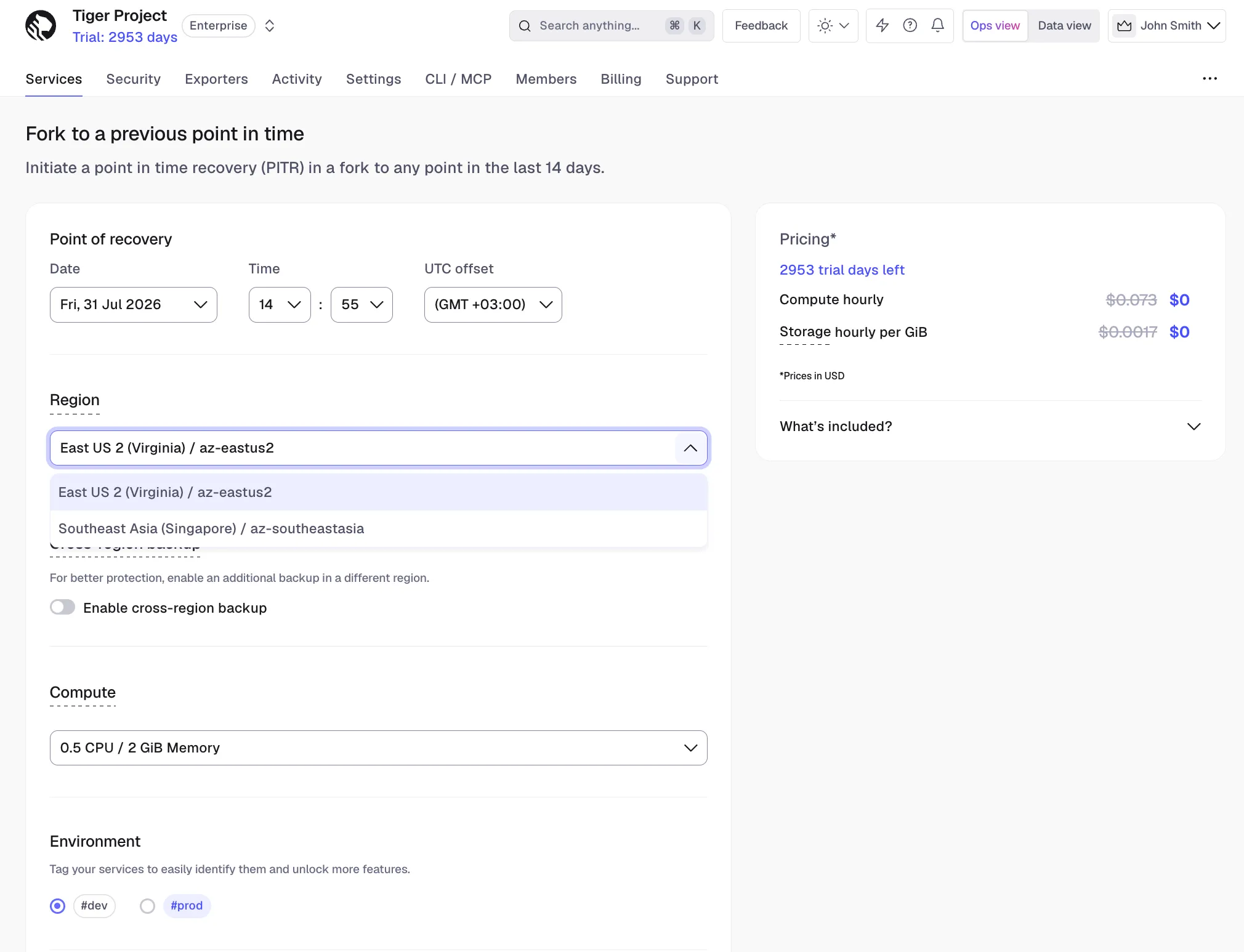
- Select the recovery point, ensuring the correct time zone (UTC offset)
- Select the region
If you had cross-region backup enabled for your service, select the region in which to create the fork.
- Configure the fork to match the original service
Best practice is to match the same configuration you had at the point you want to recover to. You can also add an HA replica, tag the fork, or add a connection pooler.
- Confirm by clicking
Create recovery fork - Update the connection strings in your app to use the fork